CareSync User Guide
CareSync is a desktop application designed for Social Workers in Singapore to manage client and support organization contact details, as well as track home visit schedules efficiently.
CareSync is optimized for use via a Command Line Interface (CLI) while still having the benefits of a Graphical User Interface (GUI). If you can type fast, CareSync can get your contact management tasks done faster than traditional GUI applications.
Table of contents
- CareSync User Guide
- Table of contents
- Quick start
- Features
- Viewing help :
help - Adding a contact:
add - Archiving a contact :
archive - Listing all unarchived contacts :
list - Listing all archived contacts :
list-archive - Editing a contact :
edit - Locating contacts by specified field:
find - Adding note to a contact :
note - Managing tags for a contact :
tag - Deleting contact(s) :
delete - Unarchiving a contact :
unarchive - Clearing all entries :
clear - Exiting the program :
exit - Autocompleting a command
- Remembering a command
- Saving the data
- Editing the data file
- Viewing help :
- FAQ
- Known issues
- Command summary
- Glossary
Quick start
Step 1 - Java Installation
- Ensure that you have Java
17or above installed on your computer. Installation guides can be found here.
Important: Follow the guide for your operating system!
- To check for the Java version installed on your computer, open a command terminal and enter
java --version. Example output for Java17:
java version "17.0.17" 2025-10-21 LTS
Java(TM) SE Runtime Environment (build 17.0.17+8-LTS-360)
Java HotSpot(TM) 64-Bit Server VM (build 17.0.17+8-LTS-360, mixed mode, sharing)
Step 2 - Download and Run CareSync
Download the latest
CareSync.jarfile from here.Copy the file to the folder you want to use as the home folder for CareSync.
Open a command terminal and navigate (
cd) to the folder you placedCareSync.jar.In the command terminal, enter
java -jar CareSync.jarto run the application.
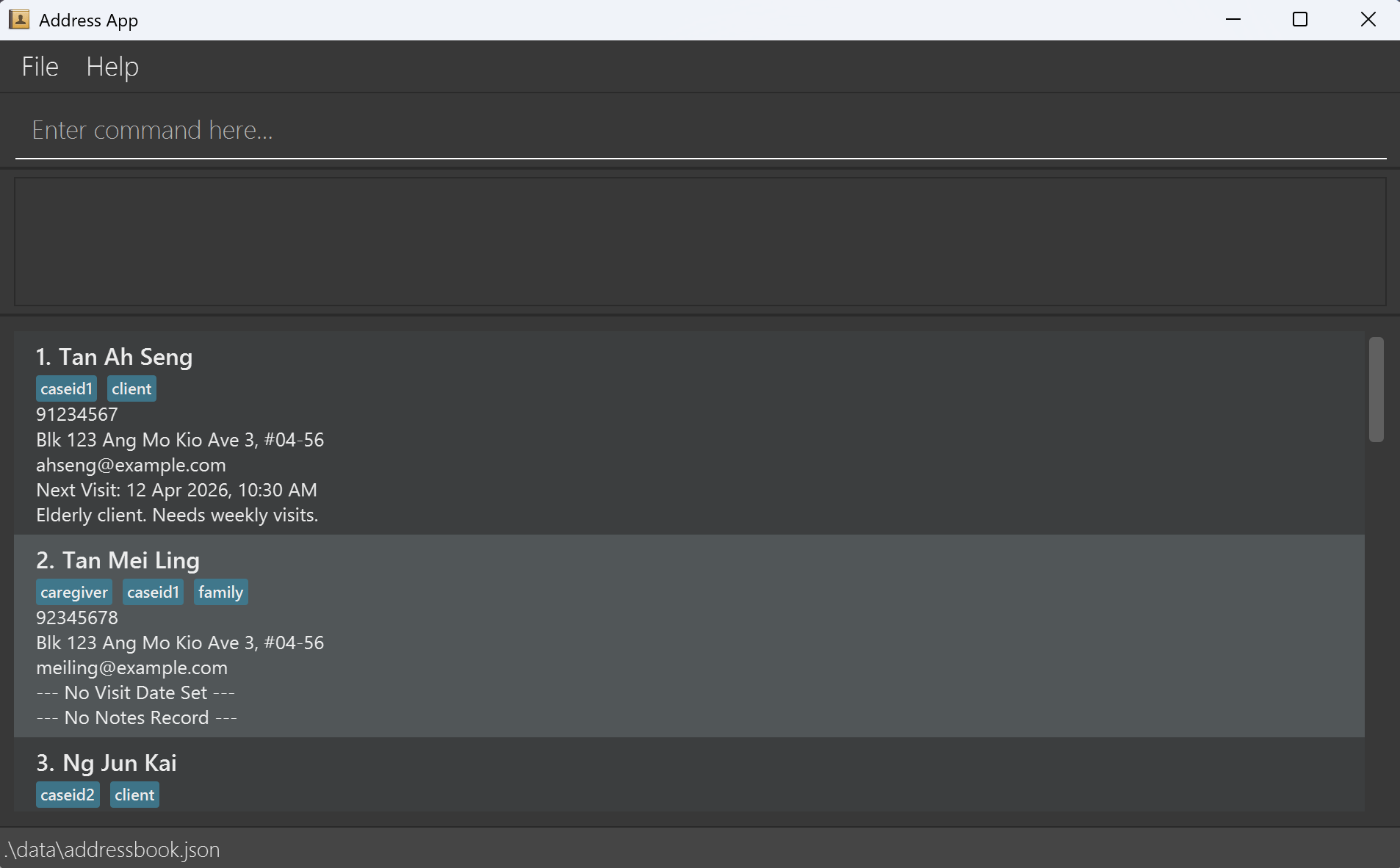
A GUI similar to the below should appear in a few seconds. There will be some sample data in the application to get you started!
Step 3 - Get Started!
Type a command in the command box and press Enter to execute it (e.g. typing
helpand pressing Enter will open the help window).Some example commands you can try:
list: Lists all contacts.add n/John Doe p/98765432 e/johnd@example.com a/John street, block 123, #01-01 nt/Needs financial support v/2026-12-01 14:00: Adds a contact namedJohn Doeto CareSync with the specifiednoteandvisit date and time.delete 3: Deletes the 3rd contact shown in the current list.find t/caseid1: Lists all contacts with thecaseid1tag.exit: Exits the app.
For details of each command, refer to the Features section below.
Features
Notes about the command format:
New users do check out the Glossary here first!
Words in
UPPER_CASEare the parameters to be supplied by the user.
e.g. inadd n/NAME,NAMEis a parameter which can be used asadd n/John Doe.Items in square brackets are optional.
e.gn/NAME [t/TAG]can be used asn/John Doe t/clientor asn/John Doe.Items with
… after them can be used multiple times including zero times.
e.g.[t/TAG]…can be used ast/client,t/client t/caseid1etc.Parameters can be in any order.
e.g. if the command specifiesn/NAME p/PHONE,p/PHONE n/NAMEis also acceptable.Extraneous parameters for commands that do not take in parameters (such as
help,list-archive,exitandclear) will be ignored.
e.g. if the command specifieshelp 123, it will be interpreted ashelp.If you are using a PDF version of this document, be careful when copying and pasting commands that span multiple lines as space characters surrounding line-breaks may be omitted when copied over to the application.
Viewing help : help
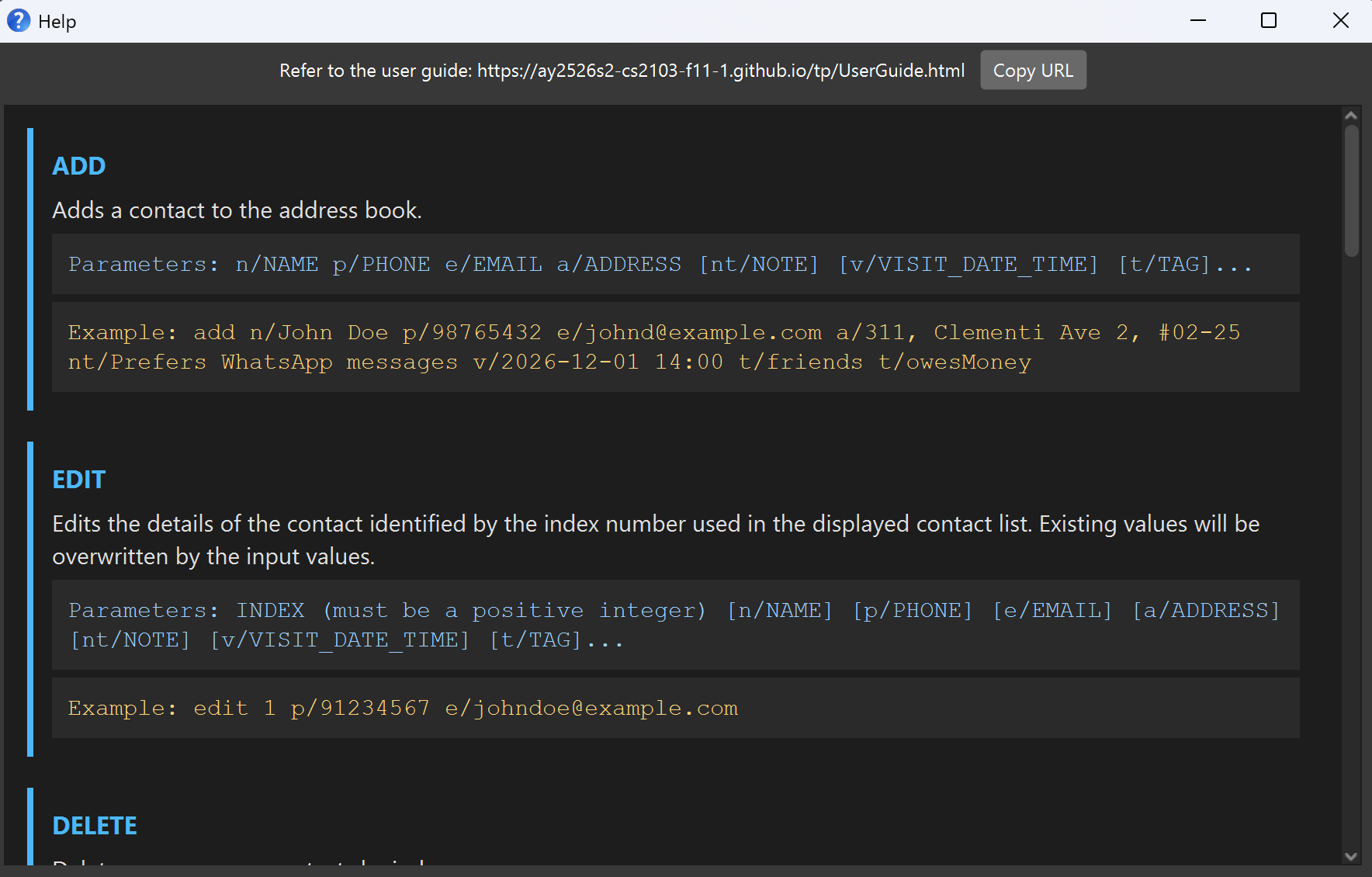
Opens the Help window.
Info: If the Help window is already open, the command will bring it into focus instead of opening a new window.
Format: help
Examples:
help
Adding a contact: add
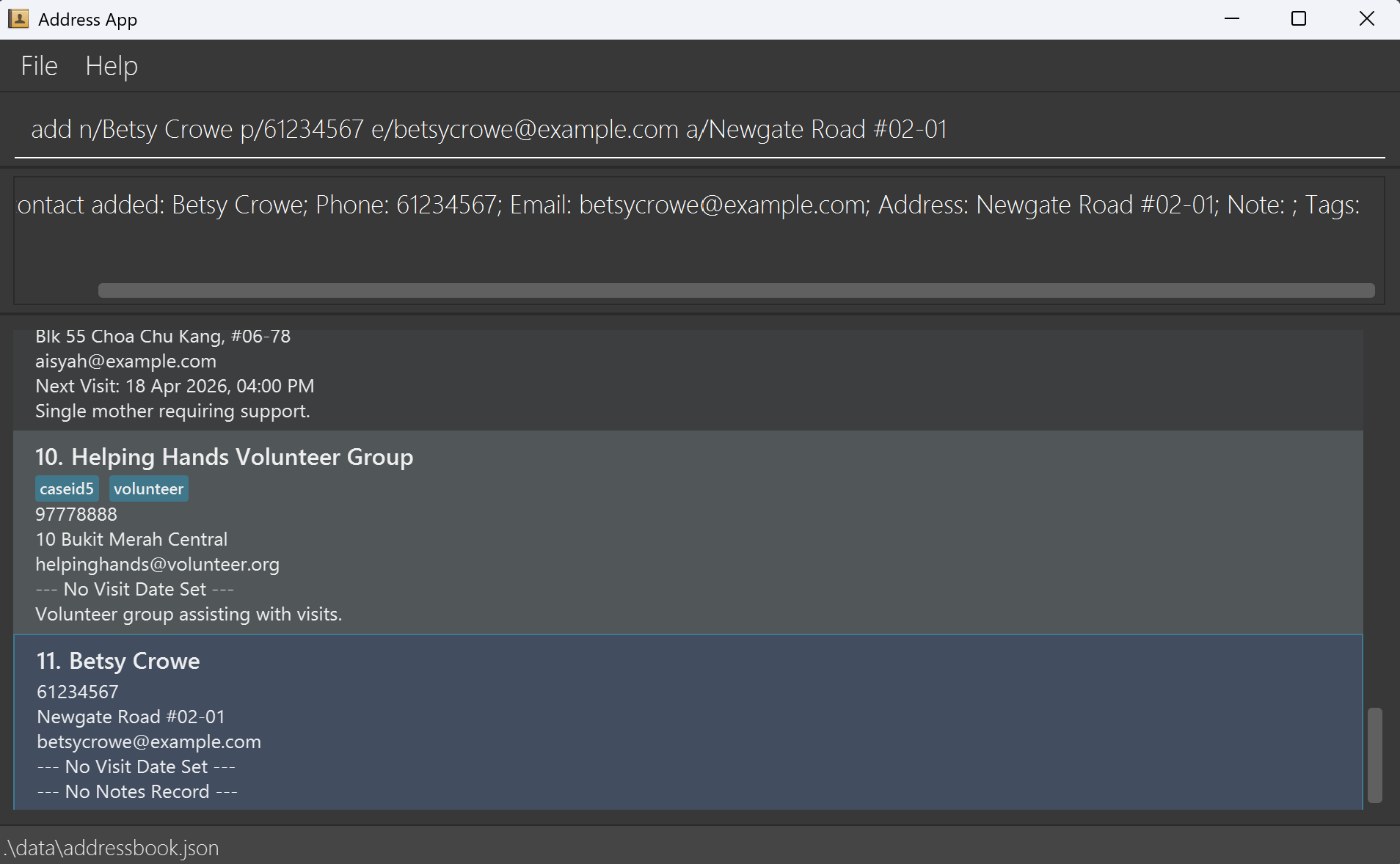
Adds a contact to CareSync.
Format: add n/NAME p/PHONE e/EMAIL a/ADDRESS [nt/NOTE] [v/VISIT_DATE_TIME] [t/TAG]…
n/,p/,e/, anda/are compulsory and must each appear exactly once.nt/andv/are optional and can each appear at most once.- You cannot add a contact whose name already exists in CareSync.
- You cannot add a contact whose
VISIT_DATE_TIMEis in the past.
Tip: A contact can have any number of tags (including 0)
Examples:
add n/Betsy Crowe p/61234567 e/betsycrowe@example.com a/Newgate Road #02-01add n/John Doe p/98765432 e/johnd@example.com a/John street, block 123, #01-01 nt/Needs financial support v/2026-12-01 14:00
Archiving a contact : archive
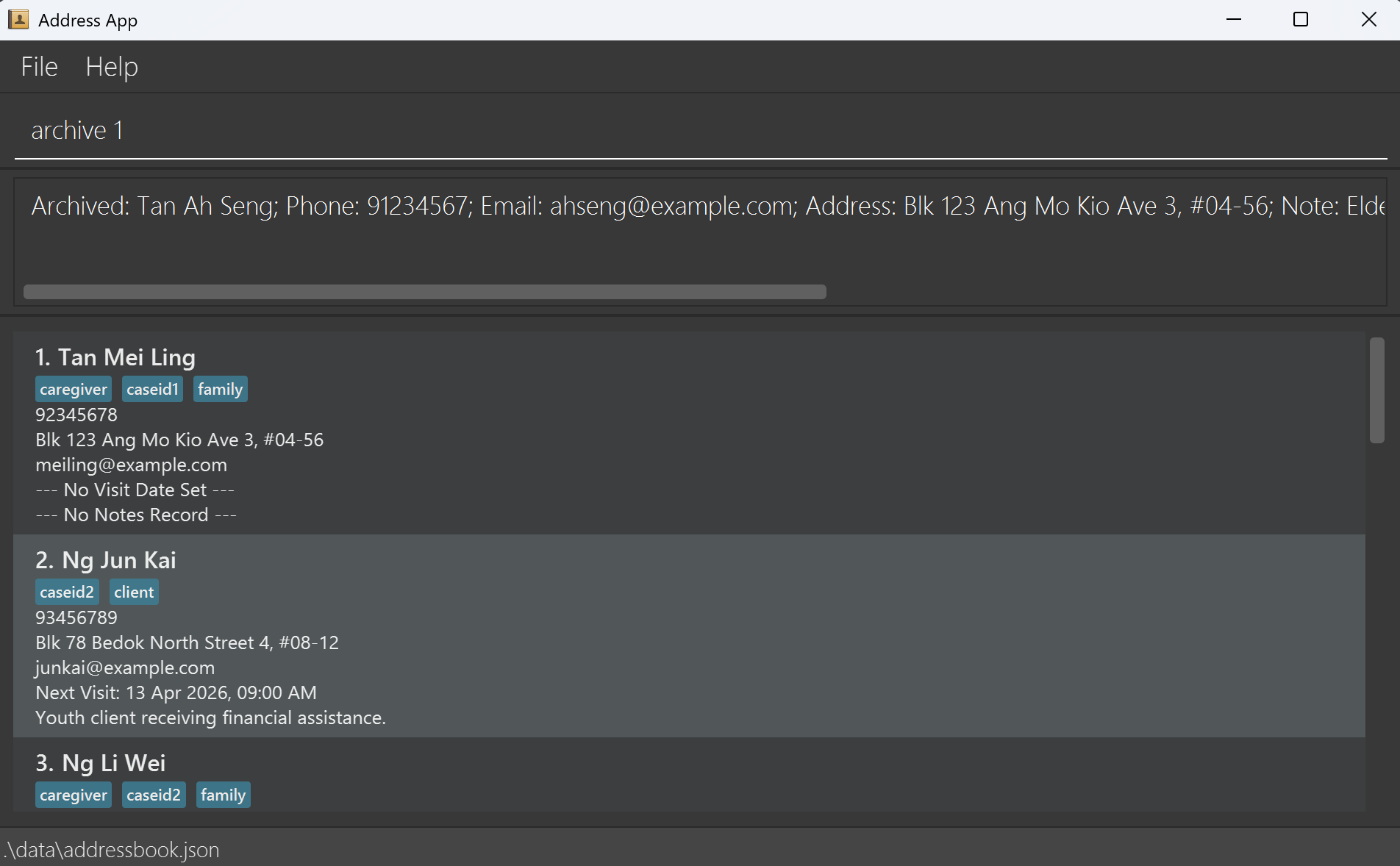
Archives a contact identified by the index number shown in the current list.
Format: archive INDEX
- Archives the contact at the specified INDEX.
- CareSync will prevent duplicate archiving by displaying an alert if the selected contact is already archived.
- After a successful archive, the displayed list refreshes to update the currently shown list.
Examples:
archive 1find n/Alexfollowed byarchive 1archives the 1st contact in the find results.
Listing all unarchived contacts : list
Shows a list of all unarchived contacts in CareSync.
Optionally, the list can be sorted by a specified field.
Format: list [s/FIELD]
- If no sorting field is provided, all contacts are listed in their default order (i.e. the original stored order of contacts).
list s/(emptyFIELD) can also be used to list the default order.
- If a sorting field is provided, the list will be sorted according to the specified field.
- Valid fields:
name- sorts contacts alphabetically by namevisit- sorts contacts by visit date and time
Note:
FIELDis case-insensitive. e.g.,NAME,VISITare also allowed- When sorting by
visit:- Contacts with visit date and time are shown first (sorted chronologically).
- Contacts without visit date and time will appear below and sorted by name.
Sorting is persistent. Once a sort is applied, it will be sorted by that specified field until a new list command is entered or until CareSync closes.
Examples:
listlist s/namelist s/visit

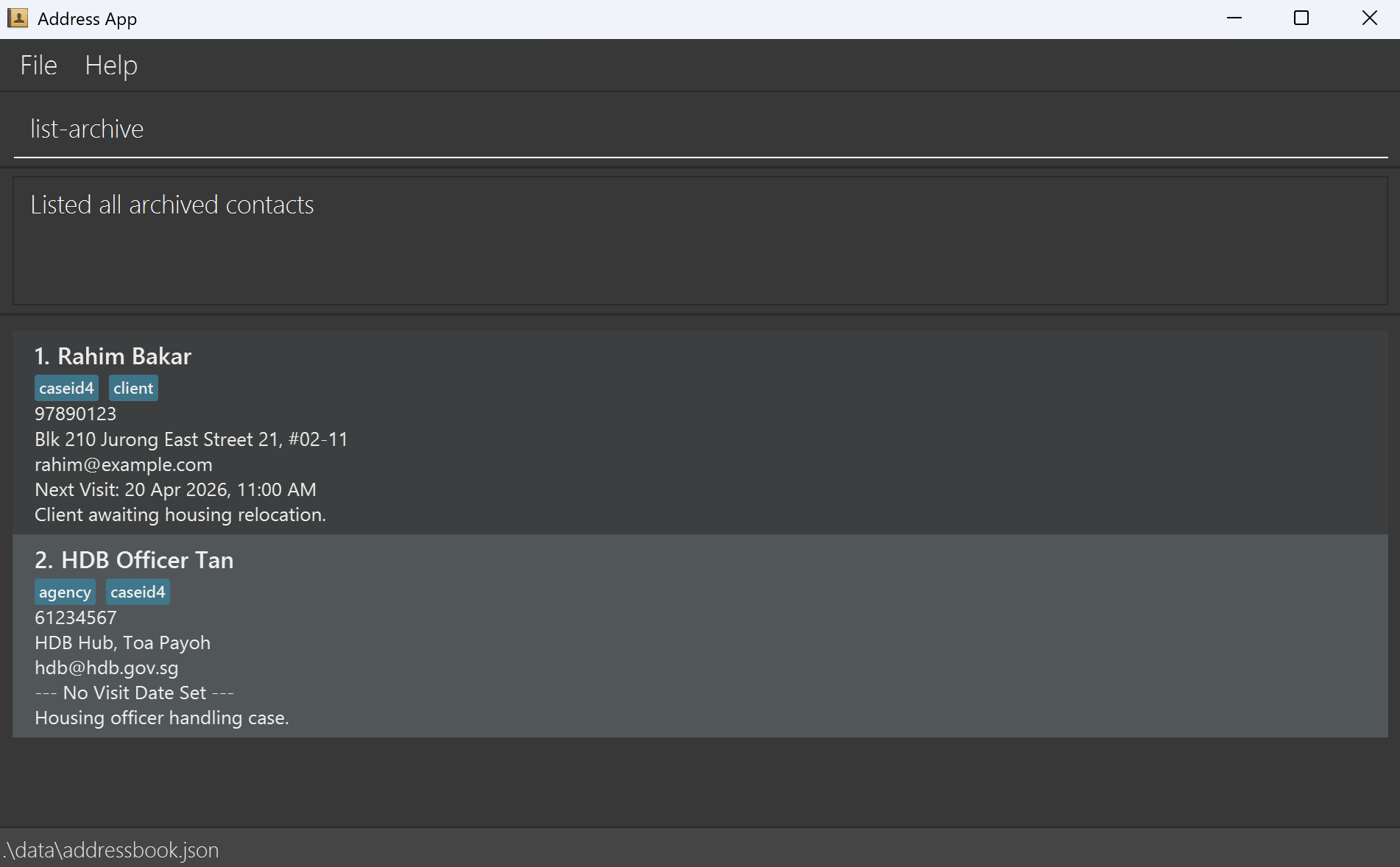
Listing all archived contacts : list-archive
Shows a list of all archived contacts in CareSync.
Format: list-archive
- This command does not take any parameters.
- The displayed list is updated to show archived contacts only.
- If there are no archived contacts, an empty list is shown.
Examples:
list-archive
Editing a contact : edit
Edits an existing contact in CareSync.
Format: edit INDEX [n/NAME] [p/PHONE] [e/EMAIL] [a/ADDRESS] [nt/NOTE] [v/VISIT_DATE_TIME] [t/TAG]…
- Edits the contact at the specified
INDEX. - At least one of the optional fields must be provided.
- You cannot edit a contact to have a
VISIT_DATE_TIMEin the past. - Existing values will be updated to the input values.
- When editing tags, the existing tags of the contact will be removed i.e adding of tags is not cumulative.
Tip: Use v/, nt/ or t/ without specifying anything to clear their respective fields!
Examples:
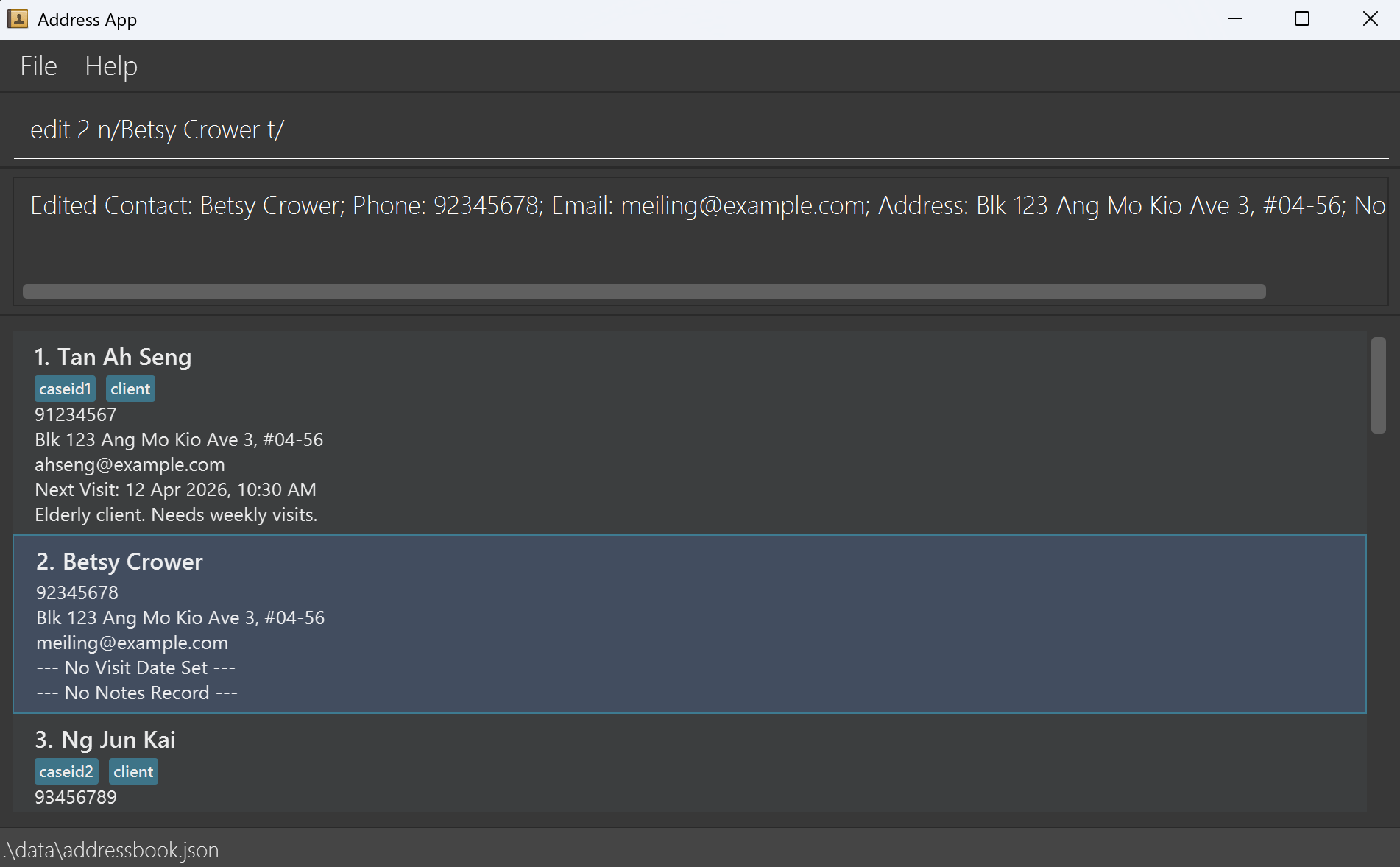
edit 1 p/91234567 e/johndoe@example.comEdits the phone number and email address of the 1st contact to be91234567andjohndoe@example.comrespectively.edit 2 n/Betsy Crower t/Edits the name of the 2nd contact to beBetsy Crowerand clears all existing tags.edit 3 v/Clears the visit date and time for the 3rd contact.
Locating contacts by specified field: find
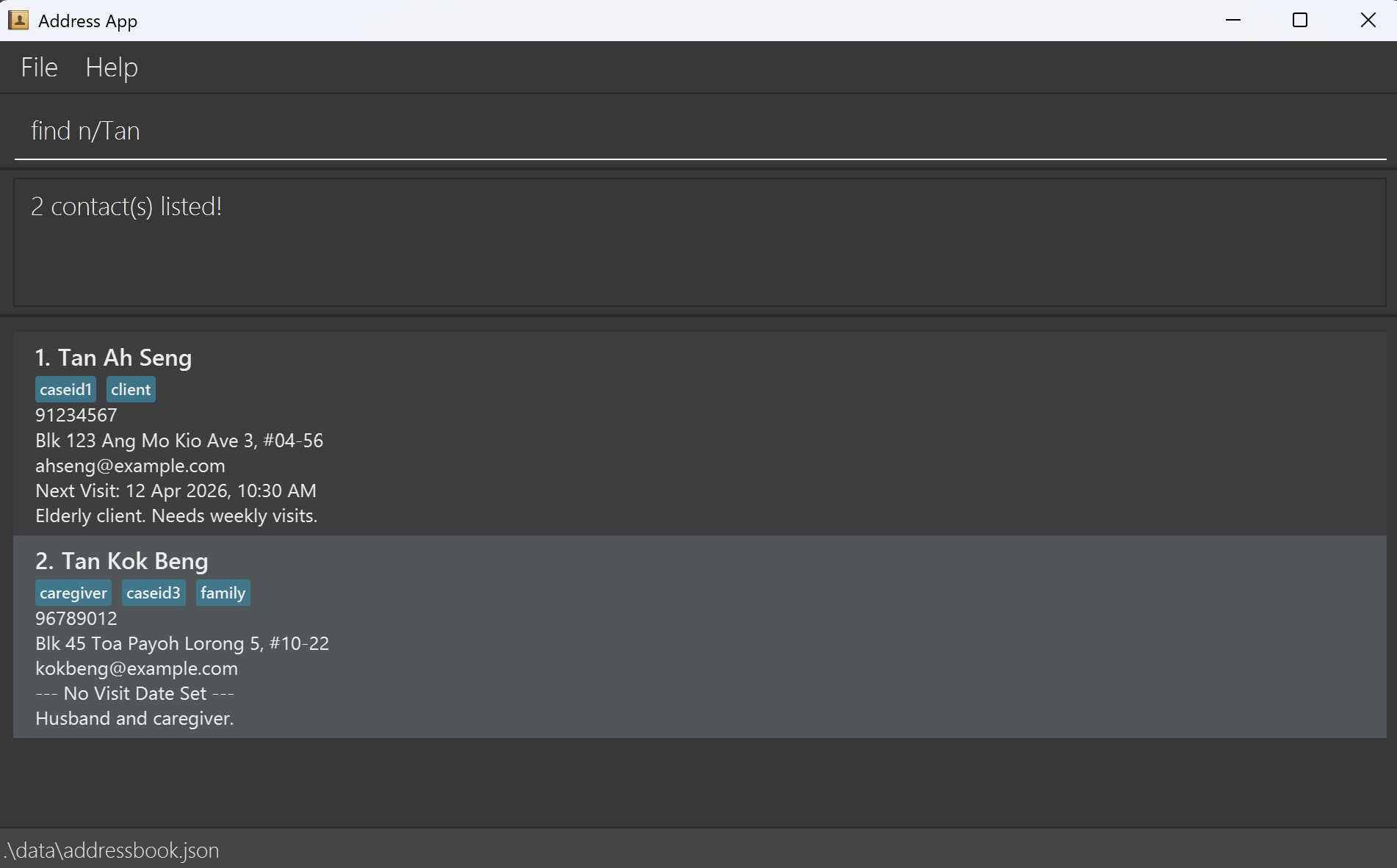
Finds unarchived contacts whose information matches the provided search criteria.
The find command enforces a Strict Single-Mode policy - only one search mode can be used per command.
Format:
- By name:
find n/KEYWORD [MORE_KEYWORDS]… - By tag:
find t/TAG - By specific date:
find d/DATE - By today:
find d/today - By date range:
find sd/START_DATE ed/END_DATE
Tip: d/, sd/ and ed/ can all use the today keyword to specify today's date!
Name search rules:
- Name search is case-insensitive. e.g.,
hanswill matchHans - Name search finds names that start with the provided name keyword.
- Multiple name keywords are treated separately.
find n/Ale Berwill matchAlexandBernice
Tag search rules:
- Tag search is case-insensitive. e.g.,
FAMILYwill matchfamily - Tag search finds tags that start with the provided tag keyword.
- Only one tag can be searched at a time.
Date search rules:
- For date ranges, both
sd/(start date) anded/(end date) prefixes are required.ed/can be specified first beforesd/. i.e,find ed/END_DATE sd/START_DATEis also valid.
- Date specified in
ed/(end date) must be later than or equal to date specified insd/(start date).
Examples:
find n/JohnreturnsjohnandJohn Doefind t/caseid1returns all contacts with thecaseid1tag (case-insensitive).find d/todayreturns all contacts with visits scheduled for today.find sd/2026-01-01 ed/2026-04-30returns all contacts with visits between 1 January 2026 and 30 April 2026 (inclusive).
Adding note to a contact : note
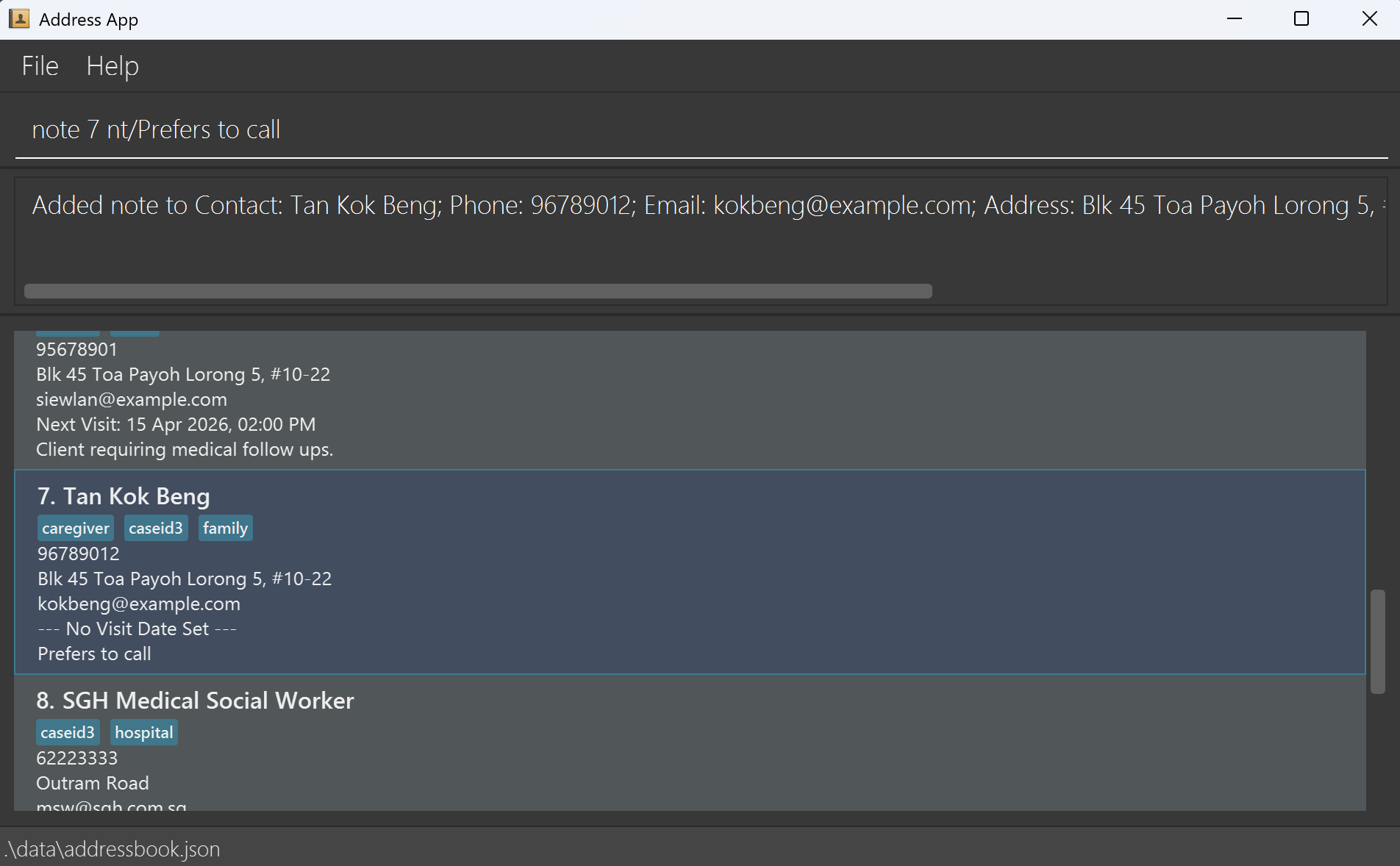
Adds, replaces, or clears a note for the specified contact.
Format: note INDEX nt/NOTE
- Adds or replaces the note for the contact at the specified
INDEX.
Tip: To clear a note, provide an empty nt/ prefix (e.g., nt/ with no text after it)
Examples:
note 1 nt/Requires wheelchair assistanceadds or replaces the note for the 1st contact in the list.note 1 nt/clears the note for the 1st contact in the list.
Managing tags for a contact : tag
Adds or removes specific tags for the specified contact. Unlike edit, this command modifies tags incrementally without clearing existing tags.
Format: tag INDEX [at/TAG_TO_ADD]… [dt/TAG_TO_DELETE]…
- Operates on the contact at the specified
INDEX. - Use
at/prefix to add one or more tags. - Use
dt/prefix to delete one or more tags. - Both
at/anddt/can be used together in a single command to add and delete tags simultaneously.
Error Handling:
- Adding a tag that already exists on the contact will be rejected.
- Deleting a tag that does not exist on the contact will be rejected.
- If any part of the command fails validation, no changes will be applied.
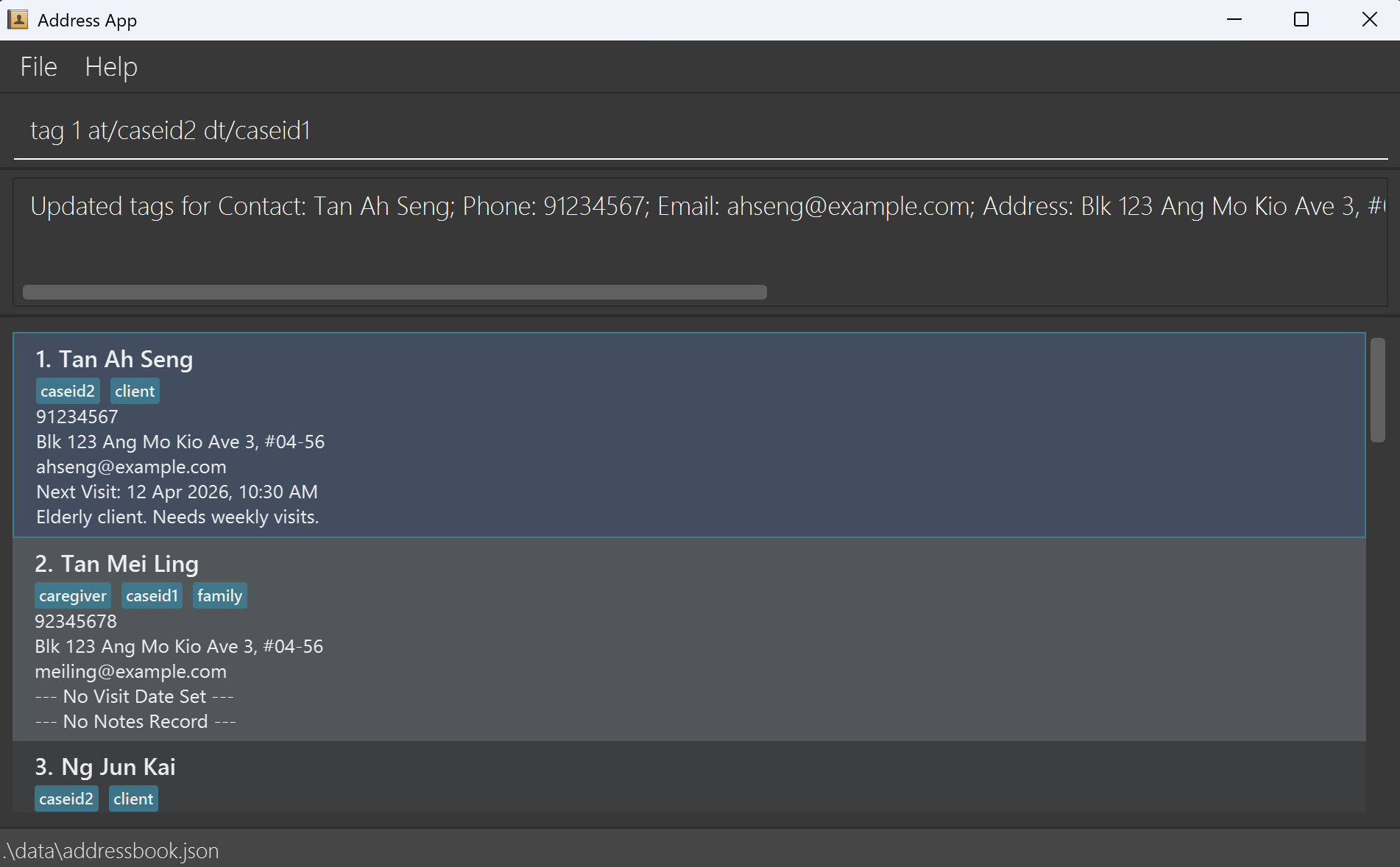
Examples:
tag 1 at/caseid2adds the tagcaseid2to the 1st contact.tag 1 dt/clientremoves the tagclientfrom the 1st contact.tag 1 at/client at/caseid2adds the tagsclientcaseid2to the 1st contact.tag 1 dt/client dt/caseid2removes the tagsclientcaseid2from the 1st contact.tag 1 at/client dt/caseid1addsclientand removescaseid1from the 1st contact.
Deleting contact(s) : delete
Deletes one or more contacts from CareSync.
Warning: This is IRREVERSIBLE!
Format: delete INDEX [MORE INDEXES or RANGES]…
- Deletes the contact(s) at the specified index(es) and range(s).
- A range is specified in the format
START_INDEX-END_INDEX, using-.END_INDEXmust be greater than or equal toSTART_INDEX(e.g. delete 3-1 is invalid).- The maximum range cannot exceed 100.
- Indexes do not need to be in ascending order (e.g.
delete 5 2 4is valid). - Duplicate indexes will be automatically ignored.
- Extra whitespaces (
) will be automatically ignored.
Error Handling:
- If any specified index does not exist, the command will fail and display the invalid index(es).
- All indexes are validated before deletion. If any index is invalid, no deletion will occur.
Examples:
listfollowed bydelete 2deletes the 2nd contact in CareSync.find n/Betsyfollowed bydelete 1deletes the 1st contact in the results of thefindcommand.
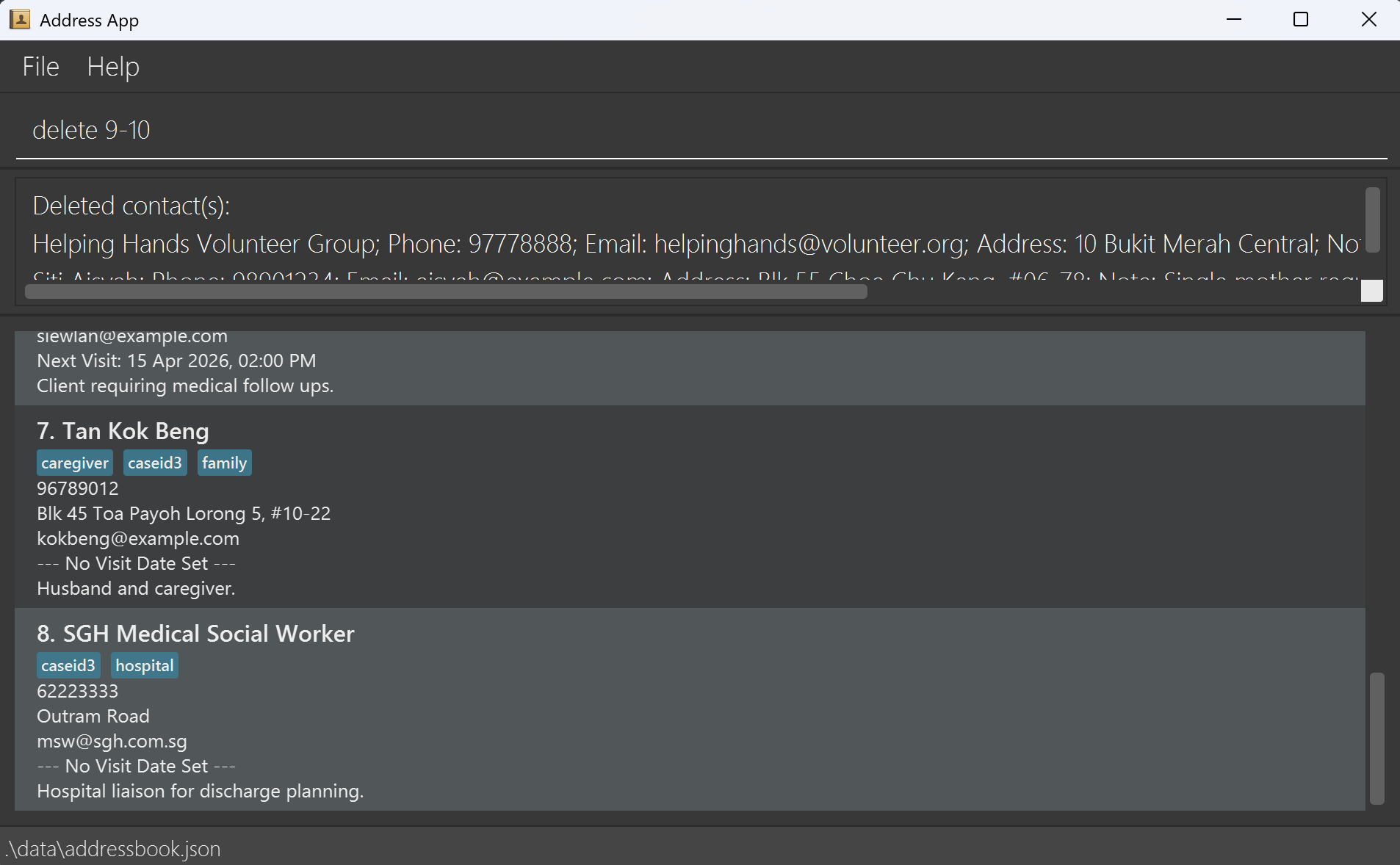
Tip: Use multiple index and/or ranges for bulk deletion
delete 1 3 5deletes the 1st, 3rd, 5th contact in CareSync.delete 2-4deletes the 2nd, 3rd, 4th contact in CareSync.delete 1 3-5 8deletes 1st, 3rd, 4th, 5th, 8th contact in CareSync.
Unarchiving a contact : unarchive
Unarchives a contact identified by the index number shown in the current list.
Tip: Run list-archive first, then unarchive INDEX.
Format: unarchive INDEX
- Unarchives the contact at the specified INDEX.
- If the selected contact is not archived, CareSync will show a message indicating that the contact is not archived.
- After a successful unarchive, the displayed list refreshes to update the currently shown list.
Tip: To return to the original list, run list.
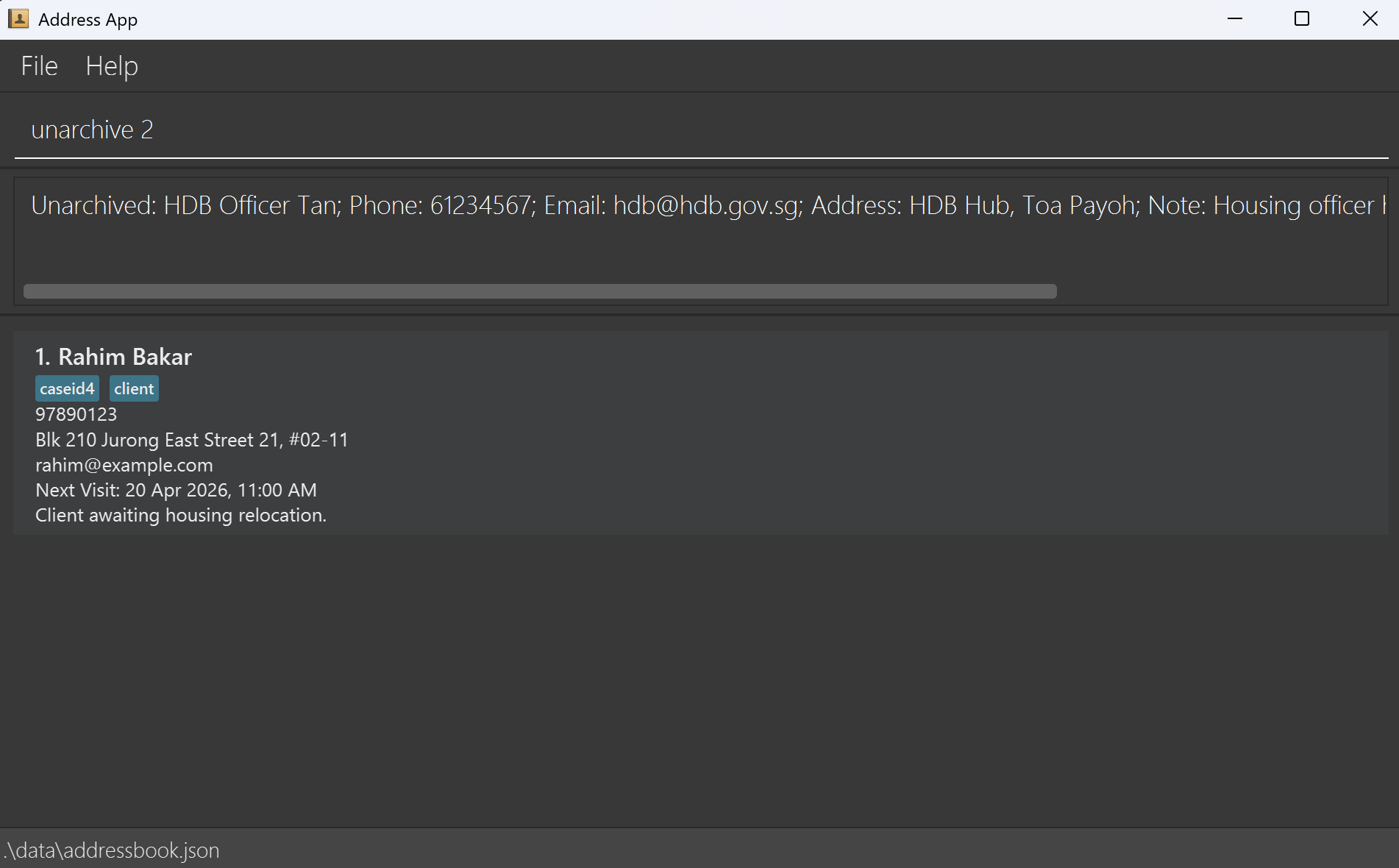
Examples:
list-archivefollowed byunarchive 1unarchives the 1st contact in the archived list.unarchive 2
Clearing all entries : clear
Clears all entries in CareSync.
Warning: This is IRREVERSIBLE!
Format: clear
Exiting the program : exit
Exits CareSync.
Format: exit
Autocompleting a command
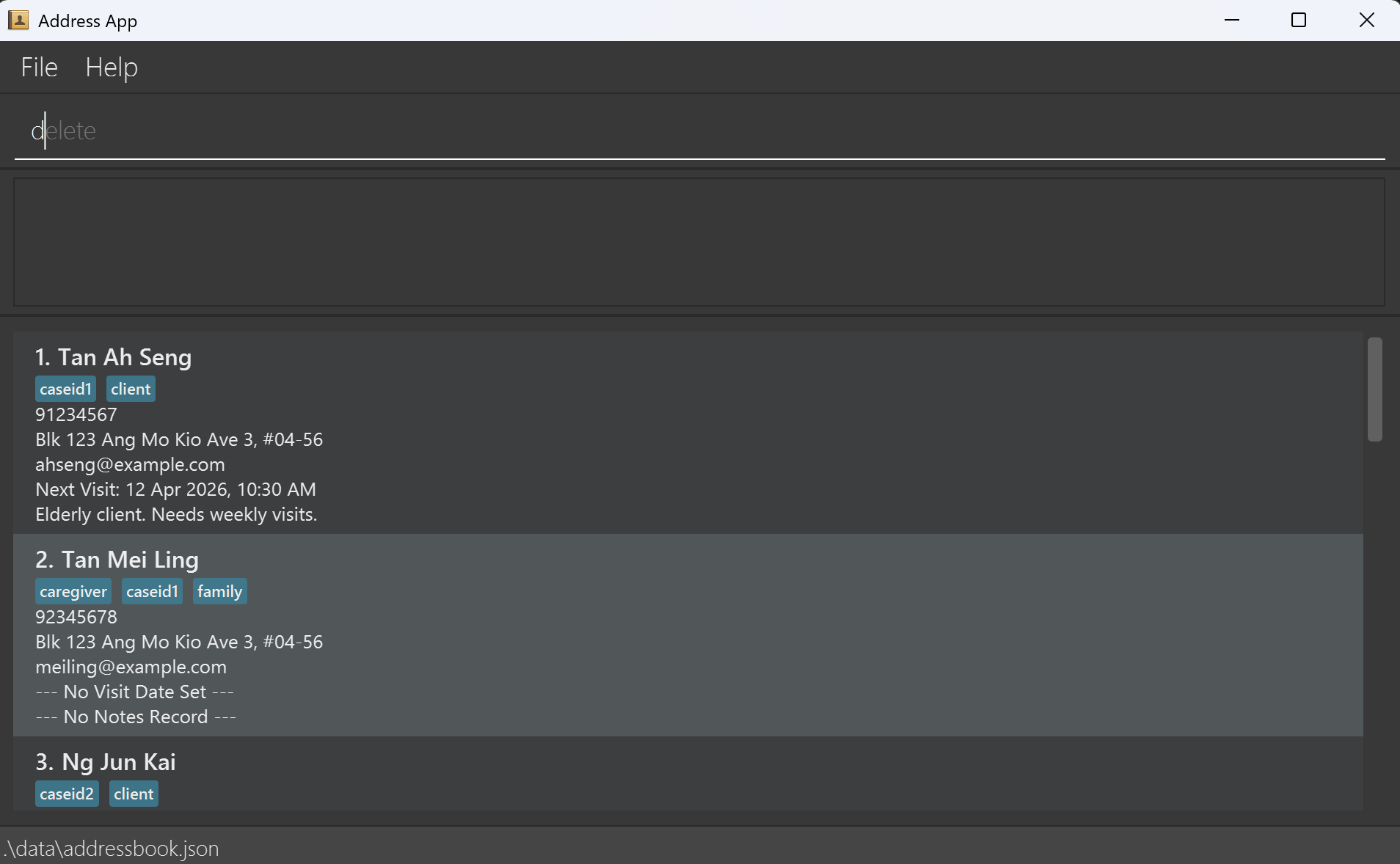
Autocompletes a command or its prefixes with TAB
- Command
- Suggests the shortest command that starts with the user input.
lisuggestslistlistsuggestslist-archive
- Suggests the shortest command that starts with the user input.
- Prefix
- Suggests next valid prefix.
edit 1 n/Alexsuggestsedit 1 n/Alex p/find n/Alexwill not suggest a second prefix.
- Suggests next valid prefix.
Examples:
- After typing
d, CareSync will suggestdelete. - After typing
add, CareSync will suggestn/.
Remembering a command
Cycle through entered commands with ↑ / ↓ arrow keys in the command box.
↑cycles back into history and↓cycles forward to the most recent command entered.- Consecutive identical commands are collapsed into one entry in history.
- Entering
listfollowed bylist, the command history will only save one instance oflist.
- Entering
Invalid commands entered will still be saved in history.
Saving the data
CareSync data is saved in the hard disk automatically after any command that changes the data. There is no need to save manually.
Running CareSync for the first time without any existing data folder will generate a JSON file.
Editing the data file
CareSync data is saved automatically as a JSON file [JAR file location]/data/addressbook.json. Advanced users are welcome to update data directly by editing that data file.
Caution:
If your changes to the data file make its format invalid, CareSync will discard all data and start with an empty data file at the next run. Hence, it is recommended to take a backup of the file before editing it.
Furthermore, certain edits can cause CareSync to behave in unexpected ways (e.g., if a value entered is outside the acceptable range). Therefore, edit the data file only if you are confident that you can update it correctly.
FAQ
Q: How do I transfer my data to another Computer?
A: Install the app in the other computer and overwrite the empty data file it creates with the file that contains the data of your previous CareSync home folder.
Known issues
- When using multiple screens, if you move the application to a secondary screen, and later switch to using only the primary screen, the GUI will open off-screen. The remedy is to delete the
preferences.jsonfile created by the application before running the application again.
Command summary
| Action | Format | Examples |
|---|---|---|
| Help | help | help |
| Add | add n/NAME p/PHONE e/EMAIL a/ADDRESS [nt/NOTE] [v/VISIT_DATE_TIME] [t/TAG]… | add n/John Doe p/98765432 e/johnd@example.com a/John street, block 123, #01-01 nt/Needs financial support v/2026-12-01 14:00 |
| Archive | archive INDEX | archive 1 |
| List | list [s/FIELD] | listlist s/namelist s/visit |
| List Archive | list-archive | list-archive |
| Edit | edit INDEX [n/NAME] [p/PHONE] [e/EMAIL] [a/ADDRESS] [nt/NOTE] [v/VISIT_DATE_TIME] [t/TAG]… | edit 1 p/91234567 e/johndoe@example.comedit 2 nt/ t/ (clears note and tag)edit 3 v/ (clears visit date and time) |
| Find | find n/KEYWORD [MORE_KEYWORDS]…find t/TAGfind d/DATEfind sd/START_DATE ed/END_DATE | find n/James Jakefind t/caseid1find d/todayfind sd/2026-01-01 ed/2026-04-30 |
| Note | note INDEX nt/NOTE | note 1 nt/Requires wheelchair assistancenote 2 nt/ (clears note) |
| Tag | tag INDEX [at/TAG_TO_ADD]… [dt/TAG_TO_DELETE]… | tag 1 at/client dt/caseid1 |
| Delete | delete INDEX [MORE INDEXES or RANGES]… | delete 1 3 6-9 |
| Unarchive | unarchive INDEX | unarchive 1 |
| Clear | clear | clear |
| Exit | exit | exit |
Glossary
Alphanumeric characters include all lower and upper case letters and numbers only!
Additional Info:
- Parameter fields will be trimmed (i.e. whitespaces (
) at the start and end will be removed) - Empty parameters used in
editandnotewill attempt to clear the respective field. Foredit, this only applies to a contact's optional fieldsnt/,v/, andt/
- INDEX: Refers to the index number shown in the displayed contact list.
- Must be a positive integer 1, 2, 3, …
- Must be a valid integer in the range of the displayed contact list
- n/NAME: Refers to the name of the contact.
- The 1st character must be an alphanumeric character
- Can only contain alphanumeric characters and whitespaces (
) - No contacts can have the same
NAME(case-insensitive. i.e.,Adamandadamcannot exist at the same time) - Max length: 80
- p/PHONE: Refers to the phone number of the contact.
- The 1st character must be a numeric character or
+ - Can only contain numeric characters, whitespaces (
) and certain special characters (+-) - Must contain at least one numeric character.
- Min length: 3
- Max length: 15
- The 1st character must be a numeric character or
- e/EMAIL: Refers to the email address of the contact.
local@domainpattern- Max length: 254
- a/ADDRESS: Refers to the address of the contact.
- Can only contain alphanumeric characters, whitespaces (
) and certain special characters (,.#'()-) - Must contain at least one non-whitespace character.
- Max length: 120
- Can only contain alphanumeric characters, whitespaces (
- nt/NOTE: Refers to the note of the contact.
- The 1st character must be a valid non whitespace (
) character - Can only contain alphanumeric characters, whitespaces (
) and certain special characters (,.) - Max length: 150
- The 1st character must be a valid non whitespace (
- v/VISIT_DATE_TIME: Refers to the visit date and time of the contact.
- Must be in
yyyy-MM-dd HH:mmformat - Any month not in the range of
01to12(inclusive) is treated as invalid - Any day not in the range of
01to31(inclusive) is treated as invalid - Any hour not in the range of
00to23(inclusive) is treated as invalid - Any minute not in the range of
00to59(inclusive) is treated as invalid - Exceptions:
24:00is treated as00:00of the next day- For any month that has a max date smaller than
31, inputting an invalid date smaller than31(inclusive) will be rounded to the highest valid date
- Accepted values are saved in normalized form after coercion/validation
- Must be in
- d/DATE, sd/DATE, ed/DATE: Refers to the visit date of the contact.
- Must be in
yyyy-MM-ddformat or use thetodaykeyword to specify today's date - For any month that has a max date smaller than
31, inputting an invalid date smaller than31(inclusive) will be rounded to the highest valid date
- Must be in
- t/TAG, at/TAG_TO_ADD, dt/TAG_TO_DELETE: Refers to the tag of the contact.
- Can only contain alphanumeric characters
- Can only be in lowercase (i.e.
CASEID1is the same ascaseid1) - Max length: 15